 Nyx
NyxEvery Steam game, on your terms.
Nyx adds games to your Steam library from their store page and keeps them on the build Steam is shipping today.
Free and updates itself. Windows 10 and 11, in 18 languages.
Three steps, then it's just Steam
-
1Install Nyx
Run it once. It sets up the unlock engine and adds a Nyx entry inside Steam.
-
2Add a game
On any store page, choose Add via Nyx. It fetches the current manifests and writes them where Steam looks.
-
3Download and play
Restart Steam when asked, then install the game like one you own. Updates follow the live build.
Built to disappear into Steam
No second launcher and no separate library. Nyx works from inside Steam and stays out of the way.
- Add from the store page
- Open a game's store page and click Add via Nyx. It lands in your library like anything else.
- Always the current build
- Nyx pulls the manifests for today's build, so games install and update to the real latest version.
- DLC included
- Most games come with their DLC already unlocked when you add them.
- Settings inside Steam
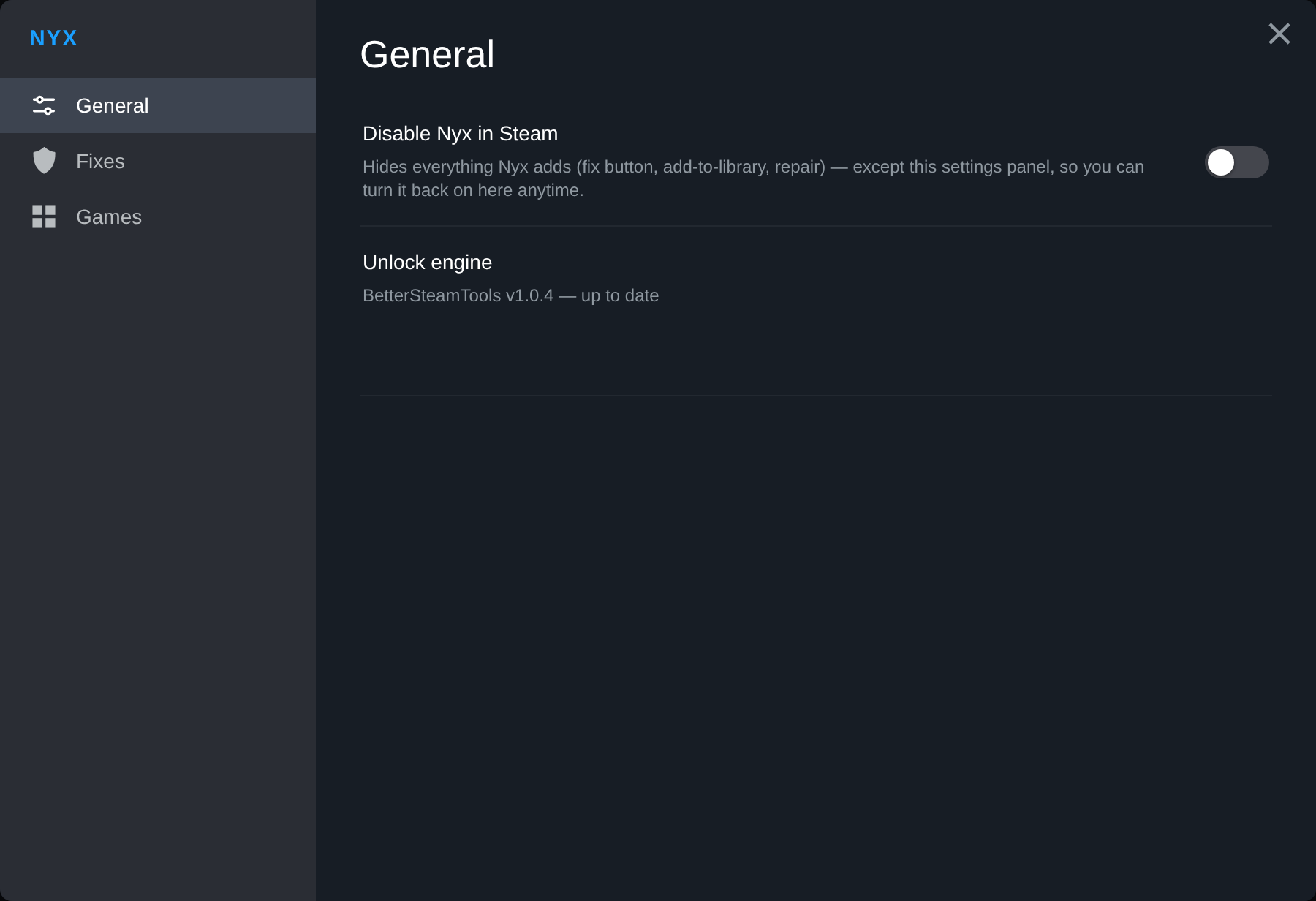
- Steam ▸ Nyx opens a settings panel in Steam's own window. Nothing extra to tab into.
- One-click off switch
- Turn Nyx off from that panel and Steam behaves exactly as it did before. Turn it back on any time.
- Standalone or plugin
- Run the standalone tray app, or the Millennium plugin if you already use Millennium. Same core either way.
It lives inside Steam
What Nyx touches on your PC
The plugin ships as plain Lua and JavaScript and the app isn't obfuscated, so anyone can check this list.
What it changes
- Puts the unlock engine in your Steam folder so added games can install.
- Writes game
.luaand.manifestfiles into Steam's config and depot cache. - Keeps its own settings in
%LocalAppData%\Nyx, never your Steam credentials. - Nothing else: no account login, no tracking of what you play.
How to undo it
- A game: open its store page, then Nyx icon ▸ Remove via Nyx.
- Nyx itself: use the off switch in Steam ▸ Nyx, or delete the engine files and the
Nyxplugin folder. - Removing Nyx leaves your installed games where they are.
Questions people ask
Do I need to own the game?
No. Nyx writes the manifest and depot files Steam needs, then Steam downloads the game from its own servers like any other title.
Will my games stay up to date?
Yes. Nyx tracks the build Steam is shipping right now and moves your added games to it, so they install and update to the current version instead of an old snapshot.
What about online games and Denuvo?
Nyx installs the game. A protected or online-only title can still need a separate fix, which Nyx doesn't bundle. Single-player games generally just work once installed. Read about fixes and online play.
Is it safe for my account?
Nyx only writes local manifest and
.lua files and deploys its unlock engine. It never logs into your account, never asks for your password and never modifies game files. As with any tool of this kind, keep added multiplayer games off VAC-secured servers.Why does my antivirus flag the download?
The build isn't code-signed (certificates are expensive) and it writes into Steam's folders, which heuristic scanners treat as suspicious. The plugin is plain Lua and JavaScript and the app is unobfuscated, so anyone can read what it does.
Standalone or Millennium plugin?
Take the standalone app if you're not sure: it sets everything up on its own. Pick the Millennium plugin only if you already run Millennium.
How do I remove a game, or Nyx itself?
For a game: its store page, then Nyx icon ▸ Remove via Nyx. For Nyx: the off switch in Steam ▸ Nyx, or delete the engine files and the
Nyx plugin folder. Your installed games stay put.Your library, after dark.
One download. Then open any store page and add the game.